NFC vs RFID: what's the security difference?
NFC is a short-range subset of RFID, built for deliberate, close-up reads.
NFC (Near Field Communication) is technically a type of RFID (Radio Frequency Identification), but with a much shorter read range — a few centimeters, versus RFID systems that can be read from meters away depending on the tag.
That short range is a security feature, not a limitation: it means an NFC business card can only be read when someone deliberately holds a phone against it, not by a scanner sweeping a room or a pocket from a distance.
Long-range RFID (used in things like warehouse inventory tags or some access badges) trades that closeness for range, which is why it needs additional shielding or encryption to stay secure. NFC business cards don't need that extra layer, because physical proximity is already the security boundary.
Nothing to hack remotely
The chip only stores a link — there's no login, wallet, or session on the card itself for anyone to break into.
QR backup on every card
No NFC, or NFC switched off? Every SmartCard has a printed QR code that opens the exact same profile through any phone's camera.
Tap to share — no app needed
iPhone or Android, old or new — if it has a camera or NFC, it works. No one needs to download anything.
pick a card
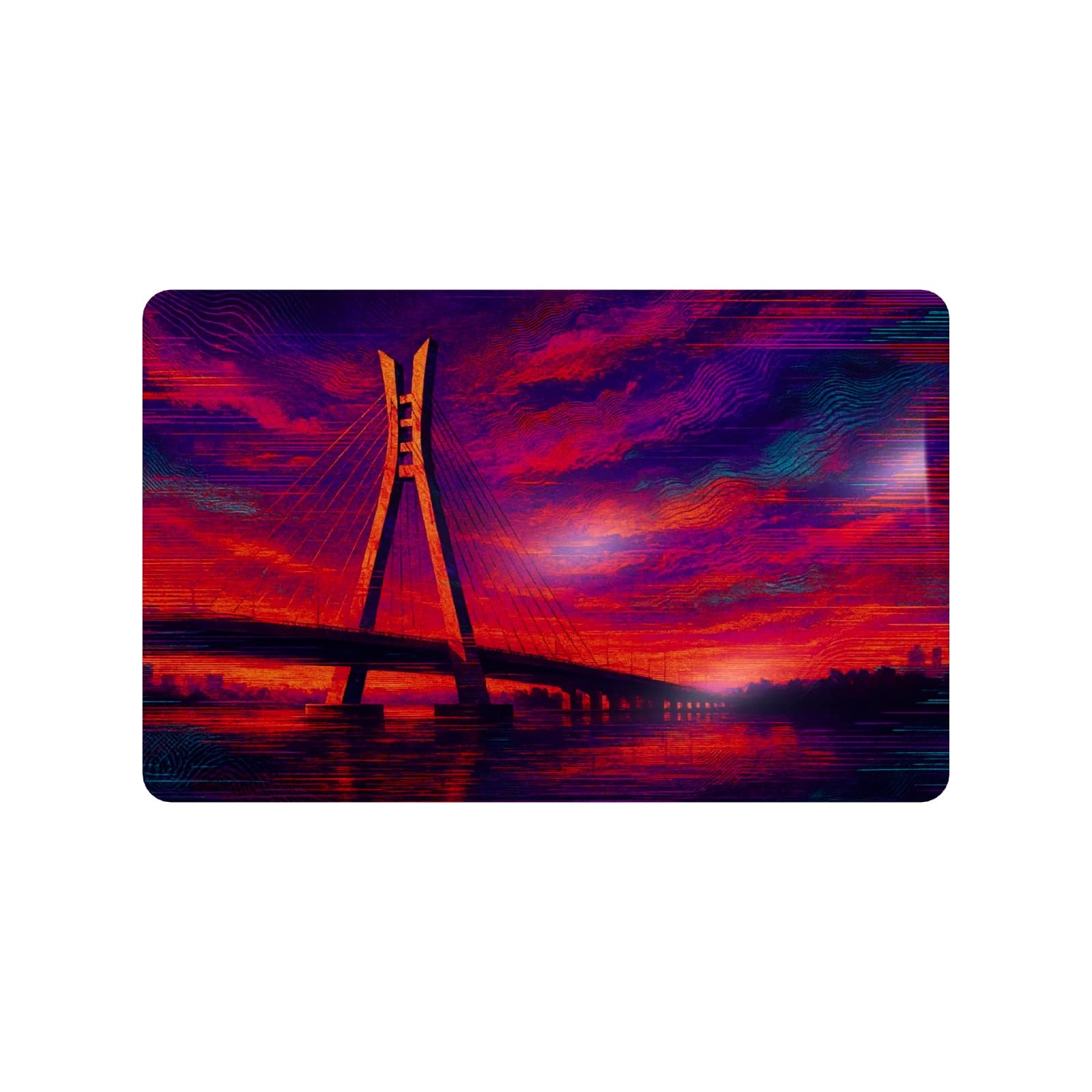
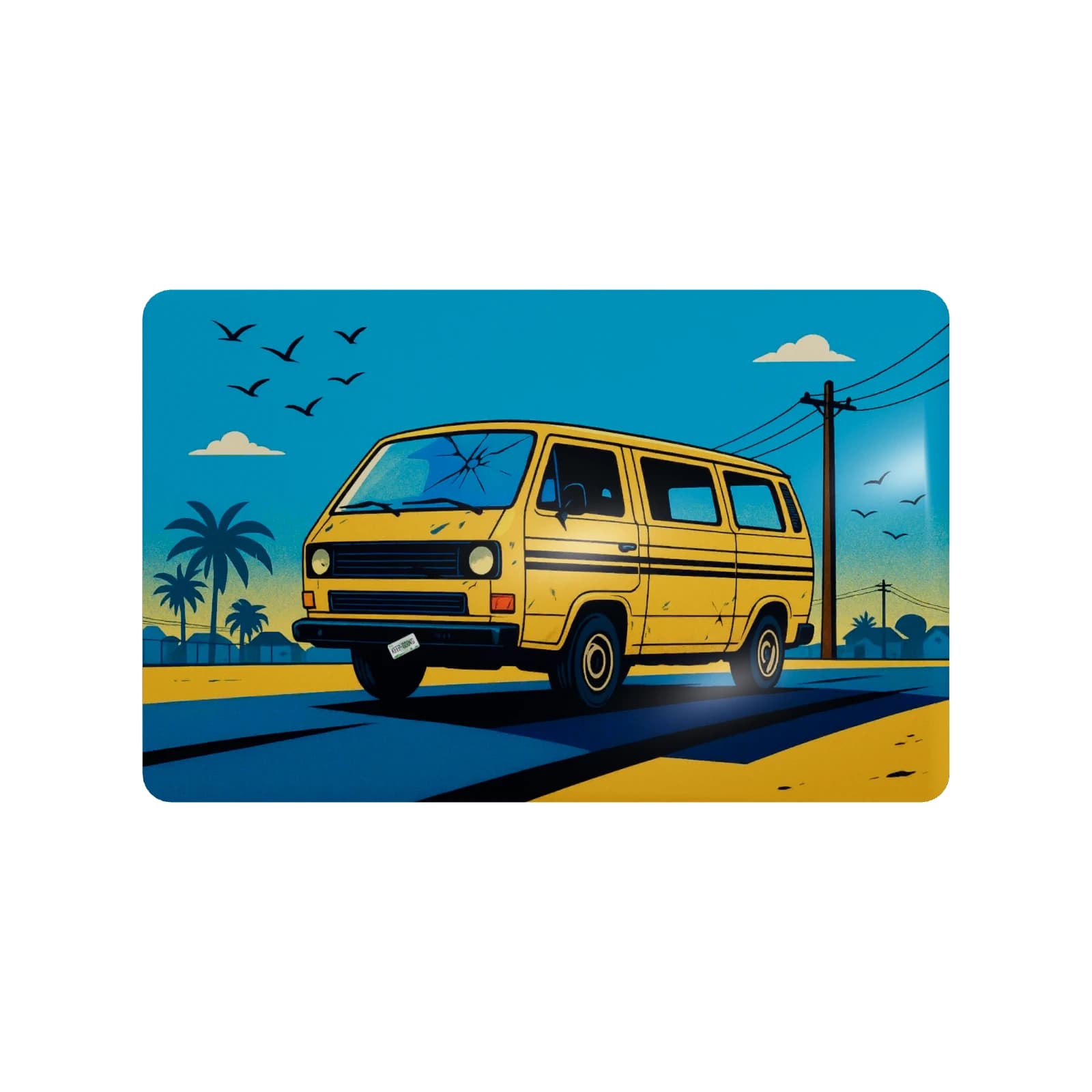
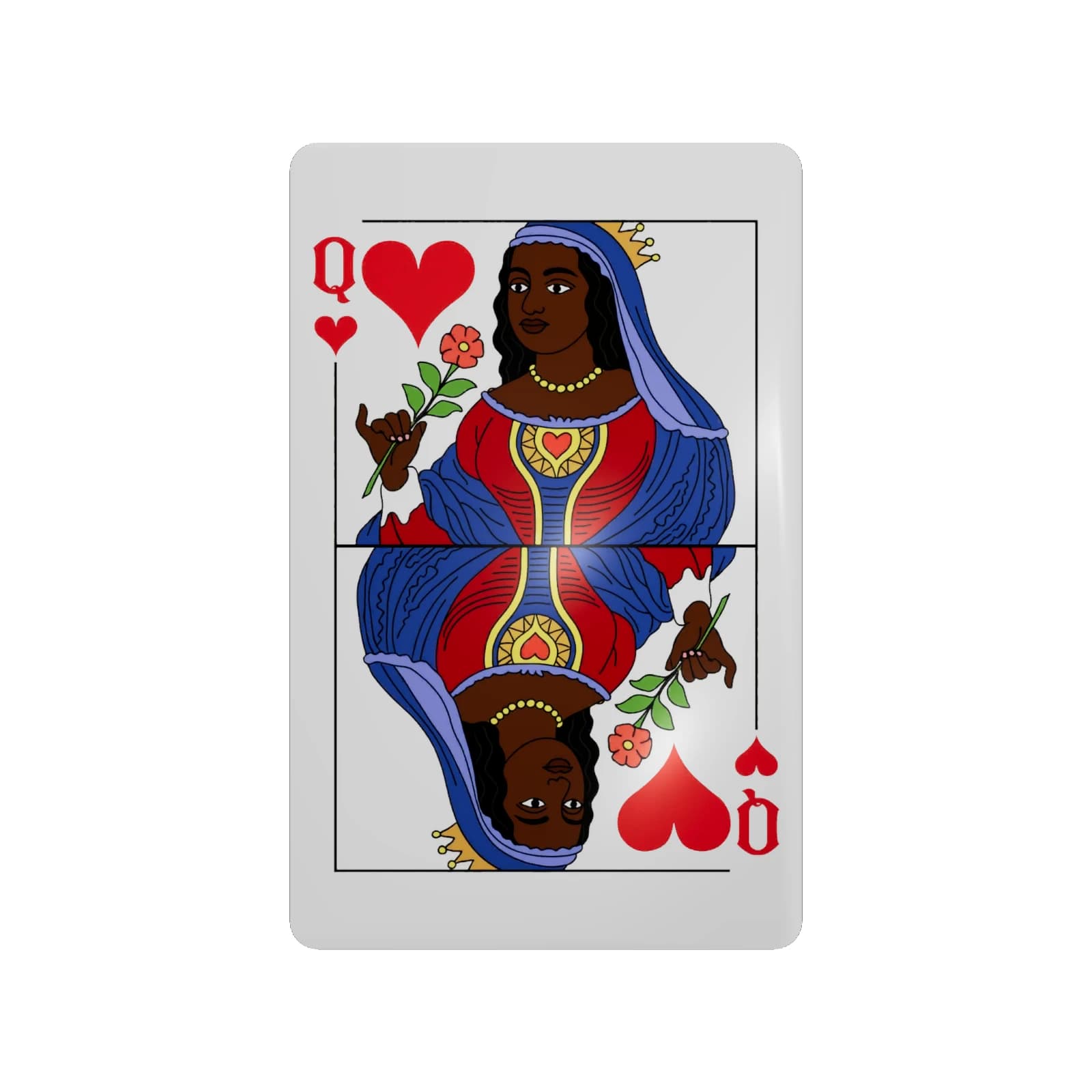
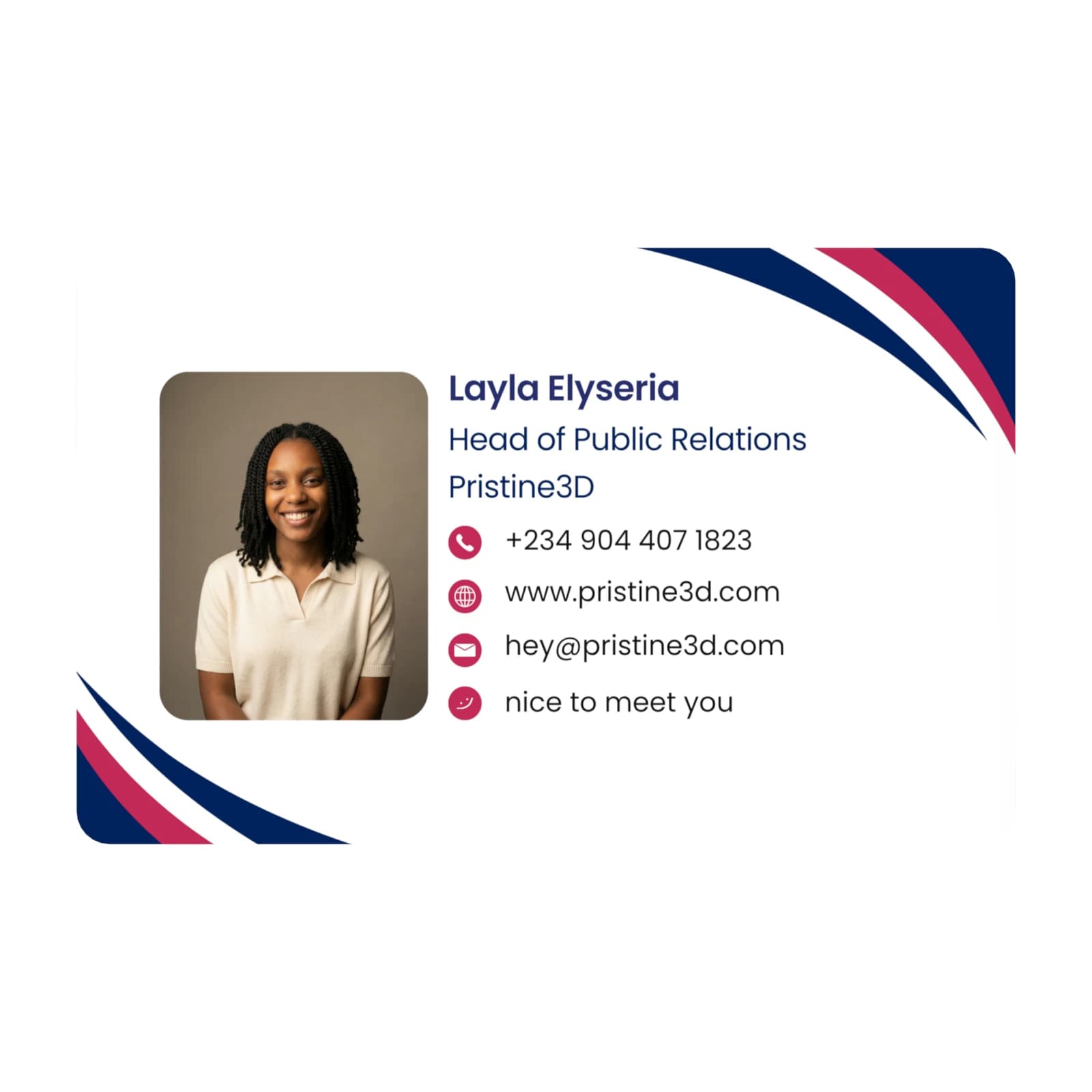
Buy once. Activate once. Update anytime.
One card, controlled from your account. Activate it once, then update your details, switch modes, and manage multiple cards whenever you need.
Managing a team?
You can keep multiple SmartCards under one account, with each card set up for a different person, role, link, or use case.
- 1
Order your SmartCard
Pick a premade design or create a custom card. Every card ships with NFC, QR backup, and a license key for activation.
- 2
Tap or scan to activate
When it arrives, tap the card with your phone or scan the QR code. It opens SmartCards so you can sign in or create your account.
- 3
Link it to your account
Enter the card ID and scratch-off license key included in the pack. This ties the physical card to your SmartCards account.
- 4
Choose what it should do
Set your first mode: business profile, payment info, emergency info, live note, or custom link. You can switch modes anytime.
- 5
Start sharing
Tap the card or let people scan the QR. They see your latest details instantly, and you can update everything later.
Common Questions
Everything you need to know about SmartCards