Can someone clone your NFC business card?
Copying the chip wouldn't get them anything you haven't already published.
In theory, the public link stored on an NFC chip could be copied onto another blank NFC tag. In practice, there's little reason to: your SmartCard's chip only points to a public profile page — the same page anyone could reach if you texted them the link directly.
Cloning the chip doesn't give anyone access to your app.smartcards.ng account, your Smart Drive files, or the ability to edit your profile. It would just be a second card pointing at information you already chose to make visible when someone taps the original.
If you're using Payment Info mode, only add payment details you're comfortable sharing publicly with anyone who taps your card — the same rule that applies to any digital business card, QR code, or printed payment link.
Nothing to hack remotely
The chip only stores a link — there's no login, wallet, or session on the card itself for anyone to break into.
Updates instantly, no reprint
Change your details at app.smartcards.ng and the very next tap shows the new version — no new card needed.
QR backup on every card
No NFC, or NFC switched off? Every SmartCard has a printed QR code that opens the exact same profile through any phone's camera.
pick a card
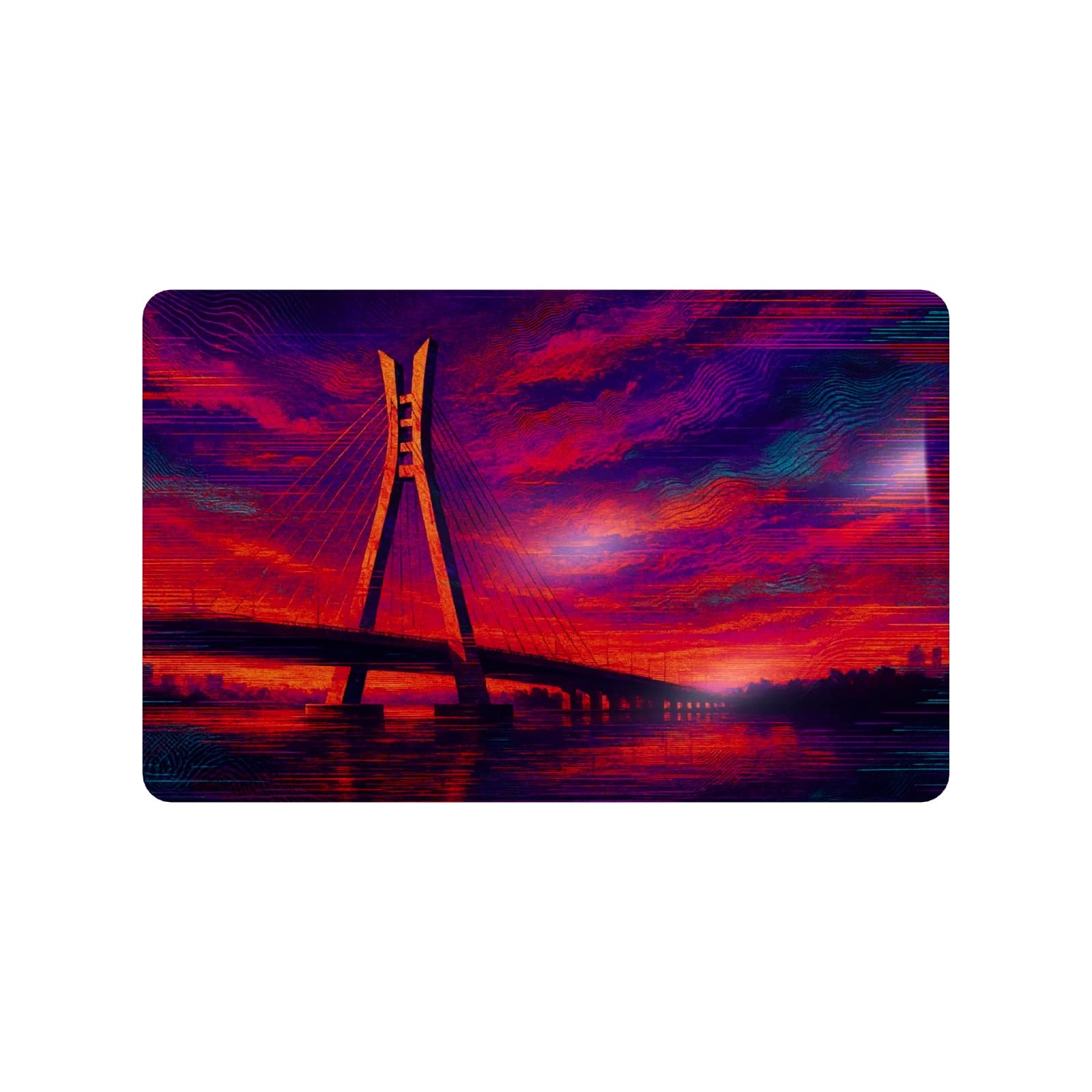
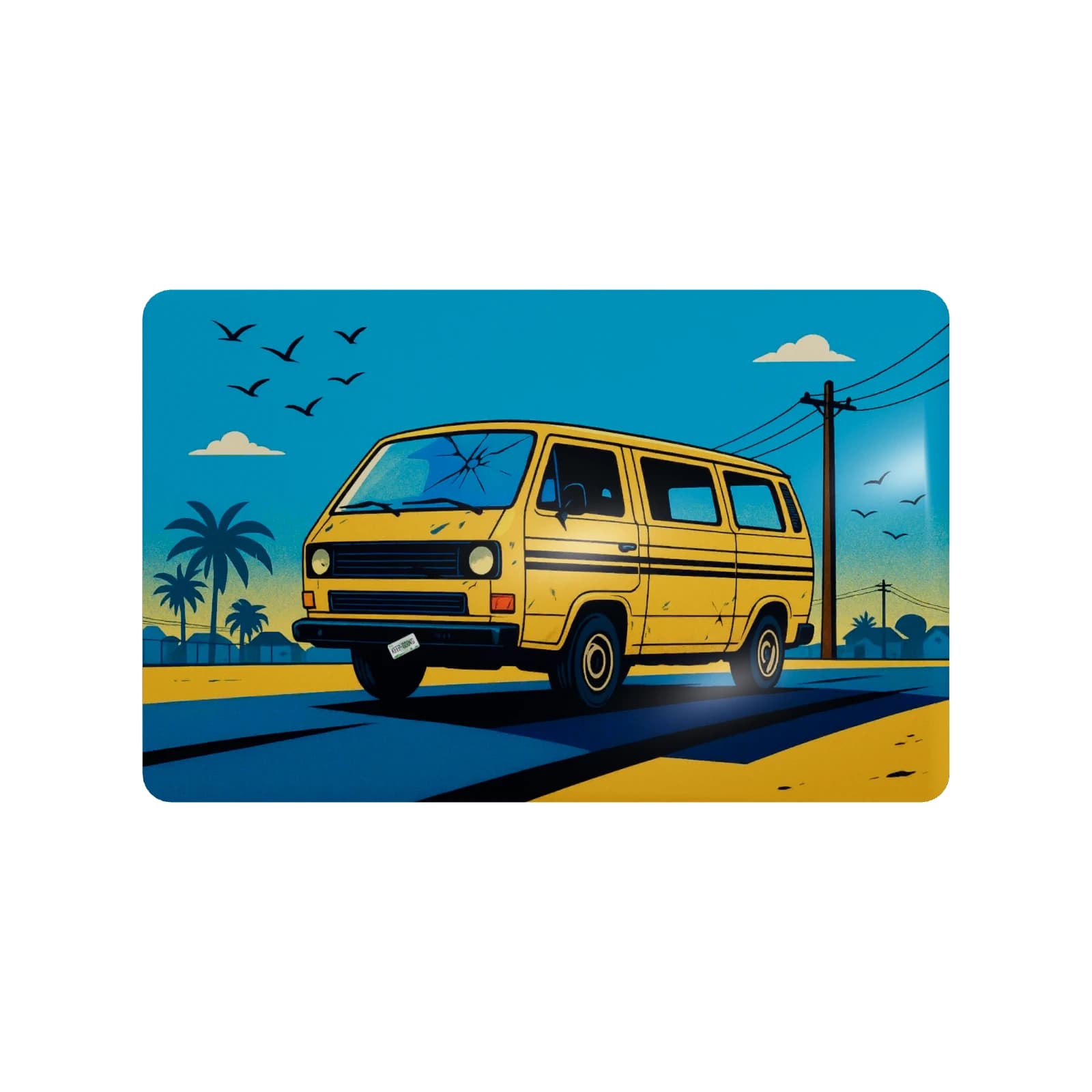

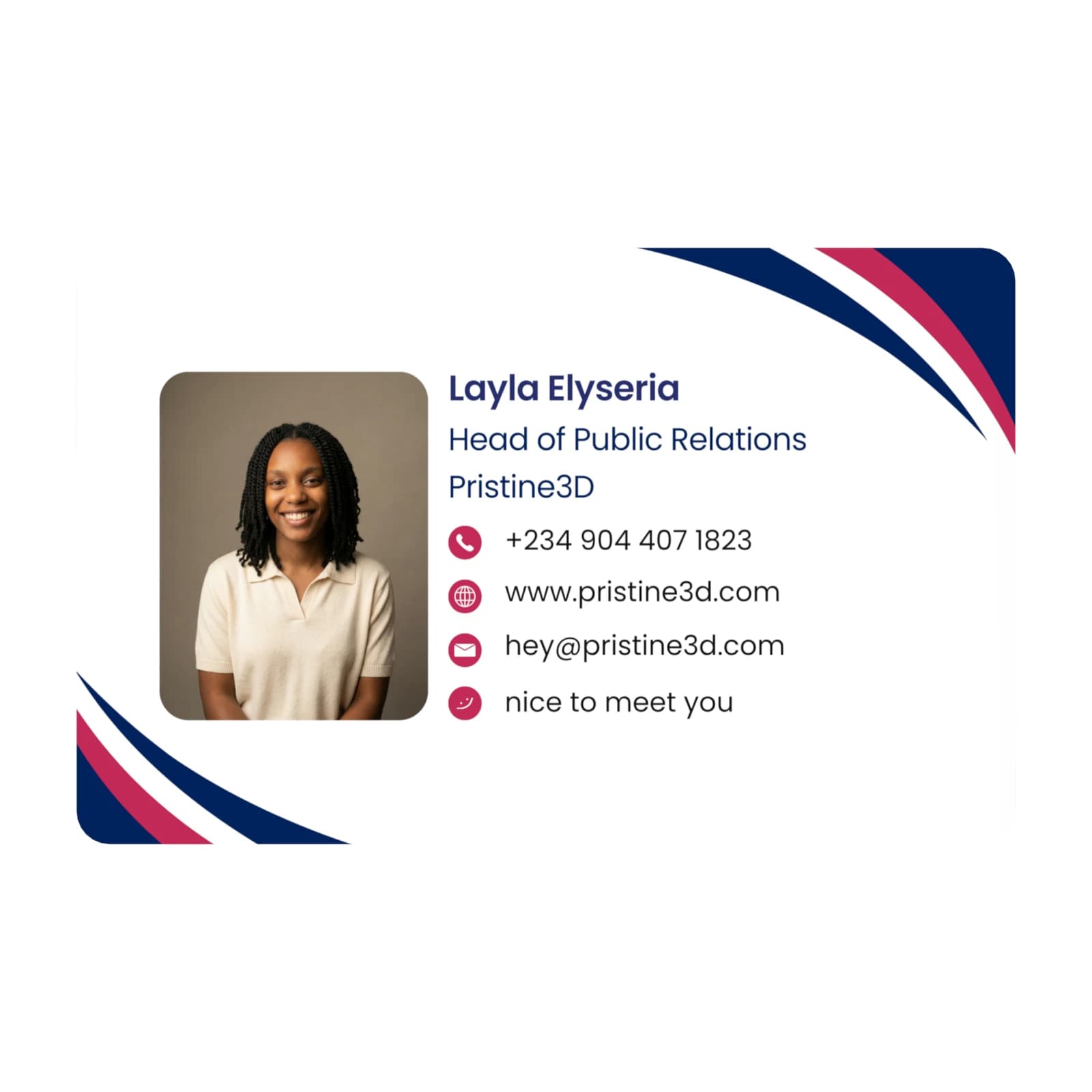
Buy once. Activate once. Update anytime.
One card, controlled from your account. Activate it once, then update your details, switch modes, and manage multiple cards whenever you need.
Managing a team?
You can keep multiple SmartCards under one account, with each card set up for a different person, role, link, or use case.
- 1
Order your SmartCard
Pick a premade design or create a custom card. Every card ships with NFC, QR backup, and a license key for activation.
- 2
Tap or scan to activate
When it arrives, tap the card with your phone or scan the QR code. It opens SmartCards so you can sign in or create your account.
- 3
Link it to your account
Enter the card ID and scratch-off license key included in the pack. This ties the physical card to your SmartCards account.
- 4
Choose what it should do
Set your first mode: business profile, payment info, emergency info, live note, or custom link. You can switch modes anytime.
- 5
Start sharing
Tap the card or let people scan the QR. They see your latest details instantly, and you can update everything later.
Common Questions
Everything you need to know about SmartCards