What is Custom Link mode, and what can you do with 100 links?
Point your card at anything on the internet — up to 100 destinations.
Custom Link mode turns your SmartCard into a direct tap-through to any URL — your website, Instagram, WhatsApp, Spotify, a menu, a portfolio, a booking page, or anything else online.
You're not limited to one link: the mode supports up to 100 saved links, so you can organize multiple destinations — say, a landing page with buttons for each of your social profiles — and change which ones are active without touching the physical card.
Because it's managed from app.smartcards.ng, you can swap out links the moment a campaign ends, a menu changes, or your social handle updates — the card itself never needs to change.
Updates instantly, no reprint
Change your details at app.smartcards.ng and the very next tap shows the new version — no new card needed.
Activate in under 2 minutes
Scratch off your license key, sign in at app.smartcards.ng, pick a mode — you're sharing before the meeting starts.
Tap to share — no app needed
iPhone or Android, old or new — if it has a camera or NFC, it works. No one needs to download anything.
pick a card
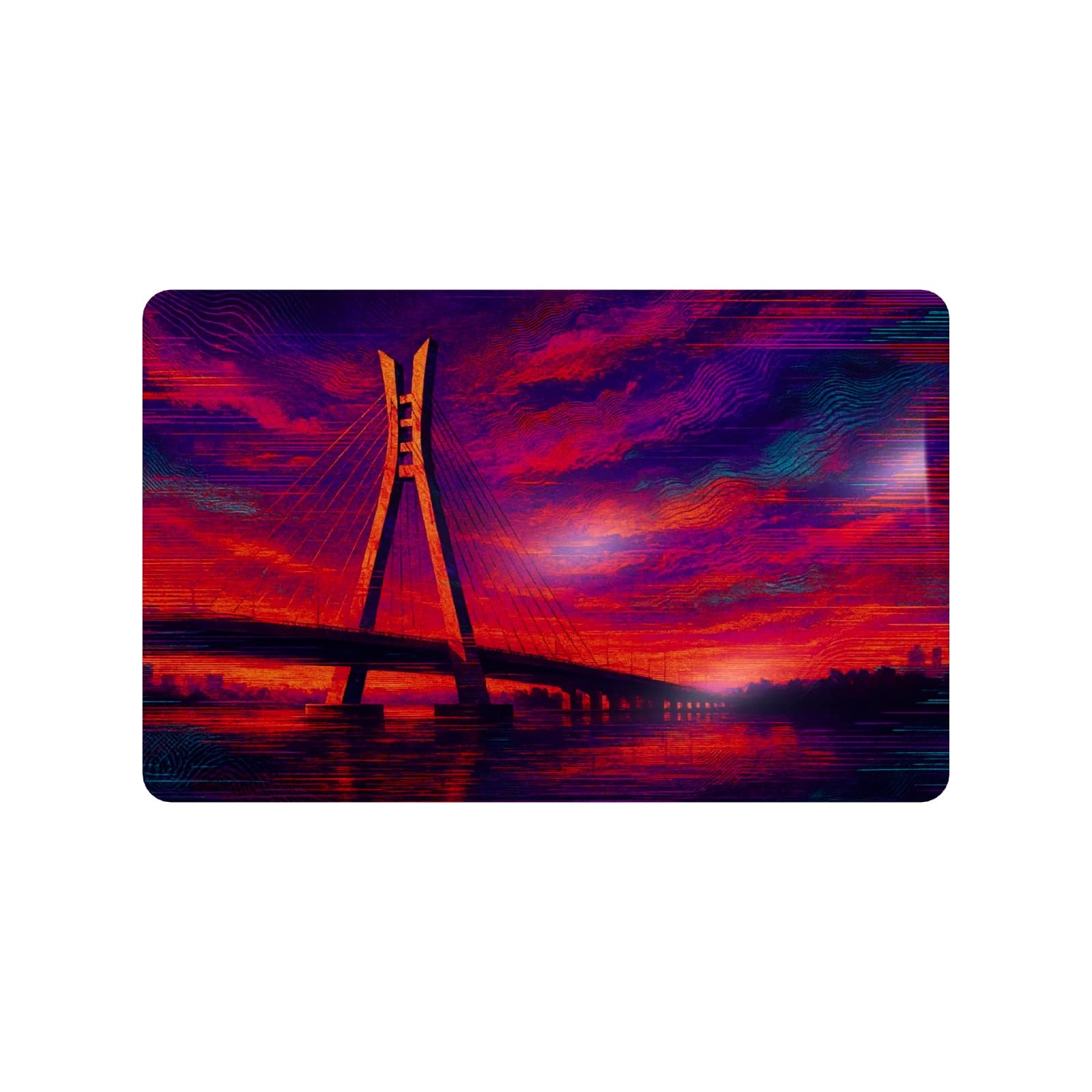
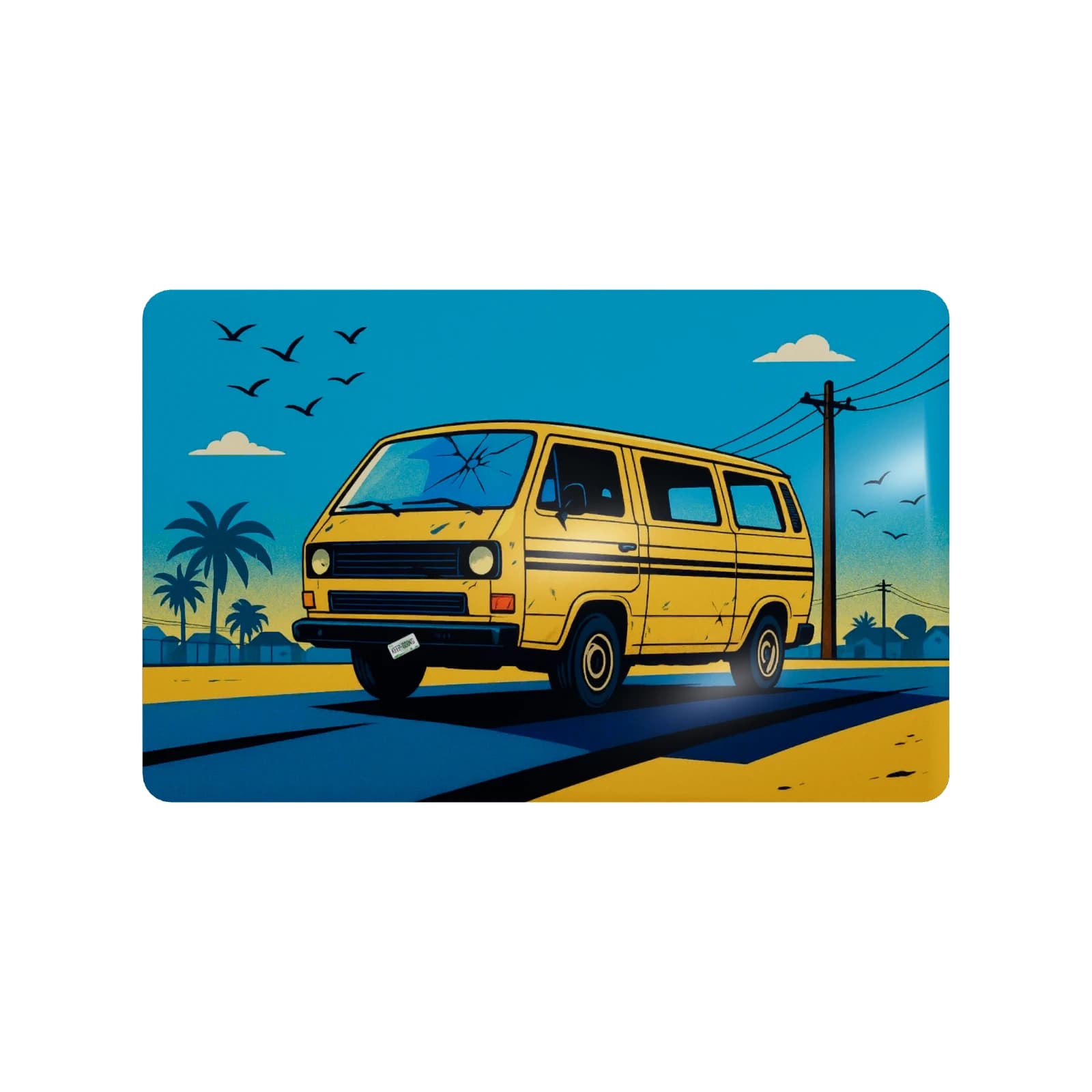
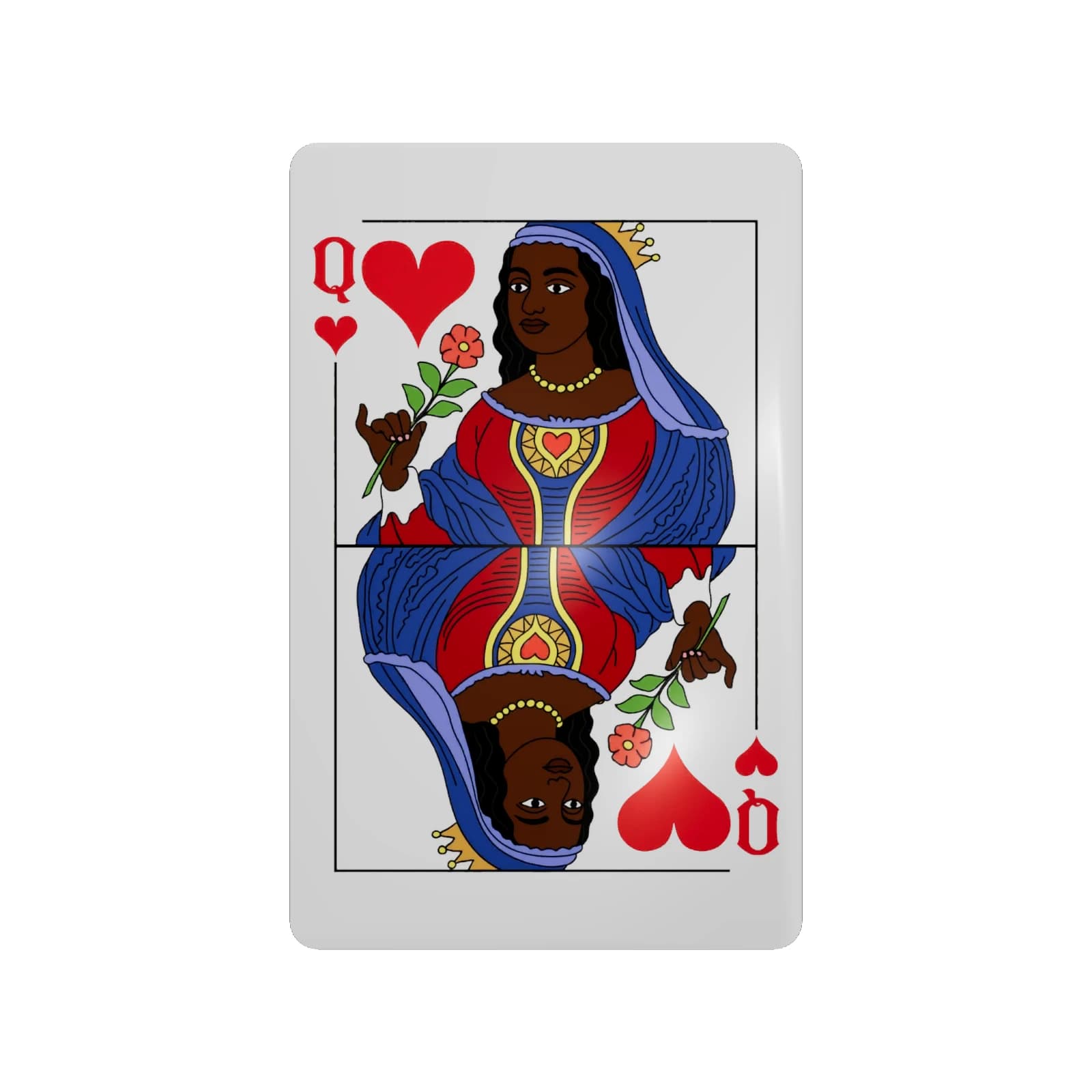
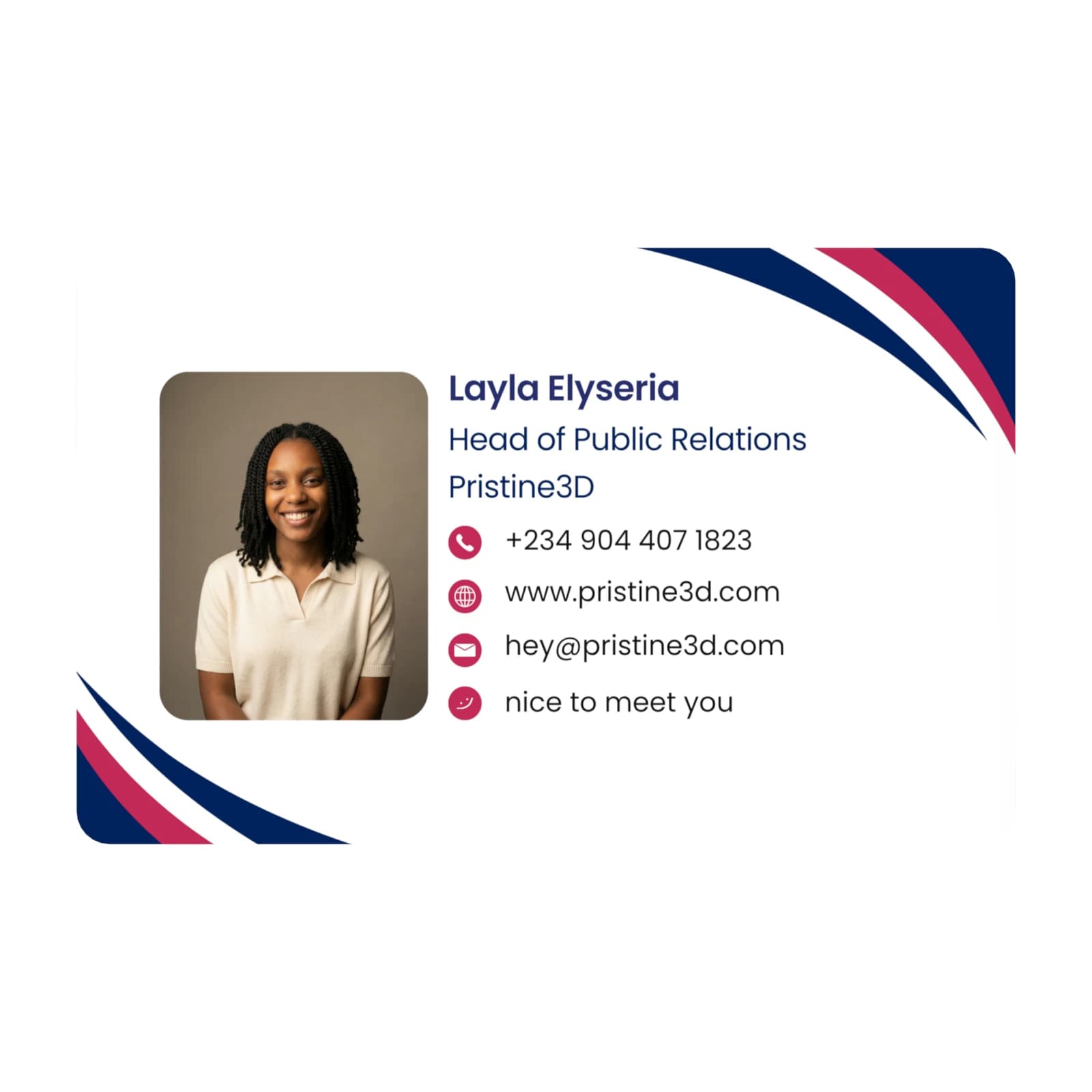
Buy once. Activate once. Update anytime.
One card, controlled from your account. Activate it once, then update your details, switch modes, and manage multiple cards whenever you need.
Managing a team?
You can keep multiple SmartCards under one account, with each card set up for a different person, role, link, or use case.
- 1
Order your SmartCard
Pick a premade design or create a custom card. Every card ships with NFC, QR backup, and a license key for activation.
- 2
Tap or scan to activate
When it arrives, tap the card with your phone or scan the QR code. It opens SmartCards so you can sign in or create your account.
- 3
Link it to your account
Enter the card ID and scratch-off license key included in the pack. This ties the physical card to your SmartCards account.
- 4
Choose what it should do
Set your first mode: business profile, payment info, emergency info, live note, or custom link. You can switch modes anytime.
- 5
Start sharing
Tap the card or let people scan the QR. They see your latest details instantly, and you can update everything later.
Common Questions
Everything you need to know about SmartCards